후방 카메라 시스템으로 자신과 타인을 보호하세요

후방 카메라 시스템: 자신과 타인을 보호하세요

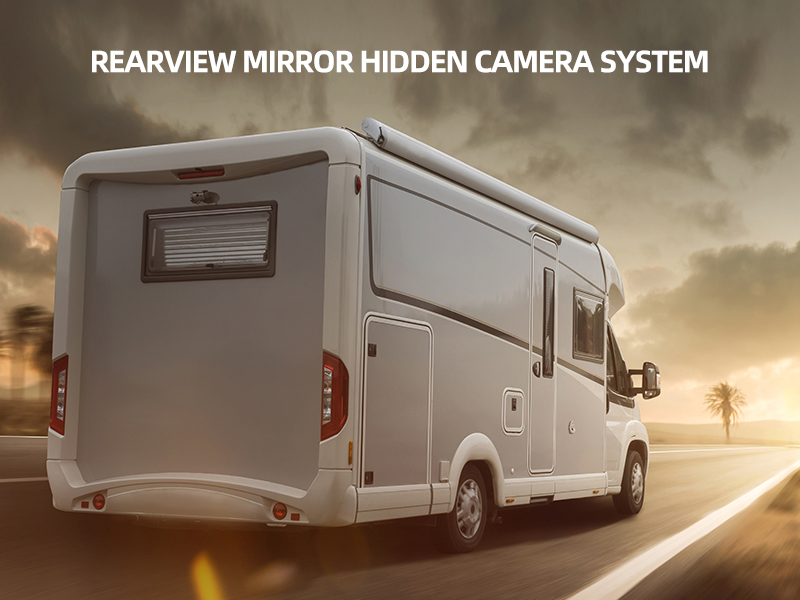
No matter what kind of car you drive, there are still blind spots that stop you from seeing what have to see so as to stop a automobile crash. Many vehicle crashes may have been prevented over the years if only today’s vehicle security camera technology had been used. Currently there are many car camera system in the market, in which a hidden type rearview mirror monitor camera system is very popular and favored by high end car owner. With a rearview mirror hidden camera system, you can feel more secure when driving. Using a rearview mirror hidden camera system will give you better vision for what is coming up around you and help to prevent an accident.

Rearview mirror hidden camera system: protect yourself and others插图

Since even today’s new vehicle still have blind spots, add hidden carera system can better ensure vehicle security and safety. It is a safety precaution we all need in today’s world. Now that you know how a rearview mirror hidden camera system can help you in preventing an accident, we’ll cover how it really works and the system features below:

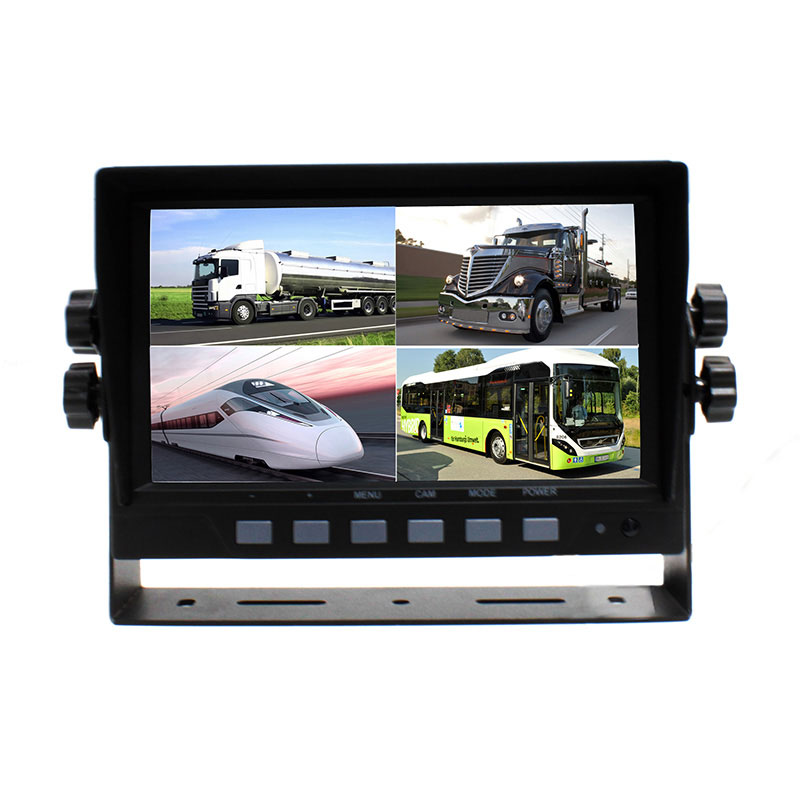
This rearview mirror hidden camera system consist of a 7 inch replacement digital rear view mirror monitor, mini rear view camera and video transmitter including cables. The following is an overview of the features available on the rearview mirror hidden camera system:

* Built in high definition camera – Featuring digital with a 1/4 inch CMOS sensor,648 x 488 pixels, 170°super wide view angle, 15 ft night vision distance,and the top rated IP69K waterproof level make it reliable even in raining days.The 170°super wide view angle ensures your car with no blind spots on the rear part.This camera can be mounted on the rear license plate position, which make it almost visible in your car, that’s why we say it hidden camera.

* Extra Wireless transmitter – With the additional wireless transmitter, you don’t need the annoying wiring in your vehicle.

* Easy to Read LCD Monitor – The monitor is a 7 inch digital LCD replacement mirror monitor that plays or replays activity on your rearview camera. It use the modern touch screen control, which ensures the maximum visible screen size.

This rearview mirror hidden camera system is truly the most revolutionary approach to provide yourself with more effective vehicle security and peace of mind. Please contact sales@luview.com or visit our official website luview.com if you want to know further information about this rearview mirror hidden camera system.

후방 카메라 시스템은 승용차, SUV, 트럭, 밴의 후진 안전성을 향상시킵니다.

후방 카메라 시스템: 승용차, SUV, 트럭, 밴의 후진 안전성 향상

대부분의 운전자는 자동차 운전이 매우 안전할 수 있다고 느끼지만, 후진 시에는 문제가 발생할 수 있다는 점에 동의합니다. 후진할 때 레일이나 장애물 같은 물체를 확인하기가 매우 어려운데, 이는 후방 카메라나 백미러로는 보이지 않기 때문입니다. 이는 모든 차량 운전 시 흔히 발생하는 문제이지만, 특히 SUV에서는 더욱 심각합니다. 일반적으로 차량이 클수록 사각지대도 커집니다. 다행히도, 후방 카메라 시스템 후진 시 시야 확보에 도움이 될 수 있습니다.

후방 카메라 시스템: 승용차, SUV, 트럭, 밴의 후진 안전성 향상

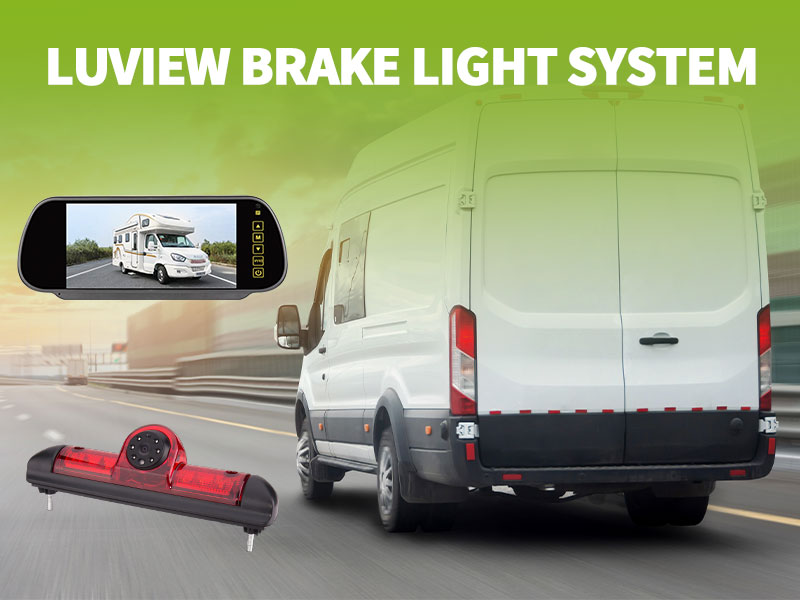
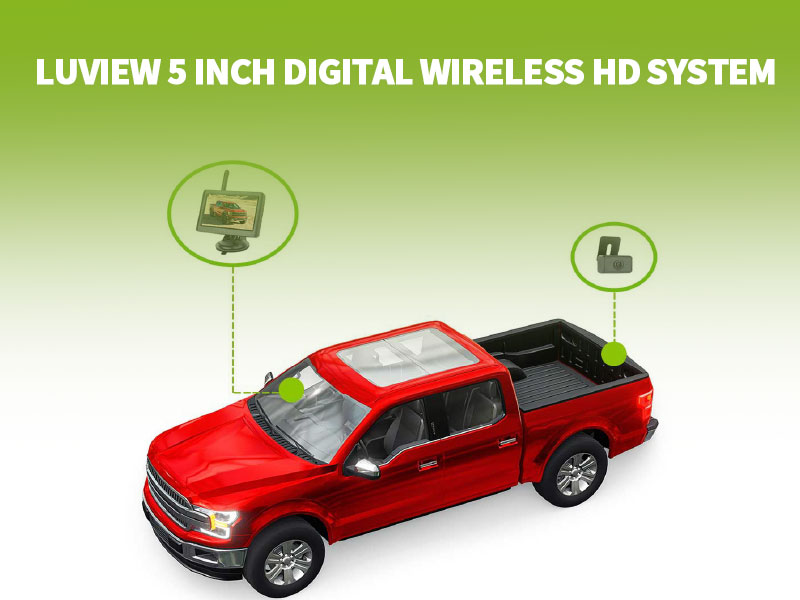
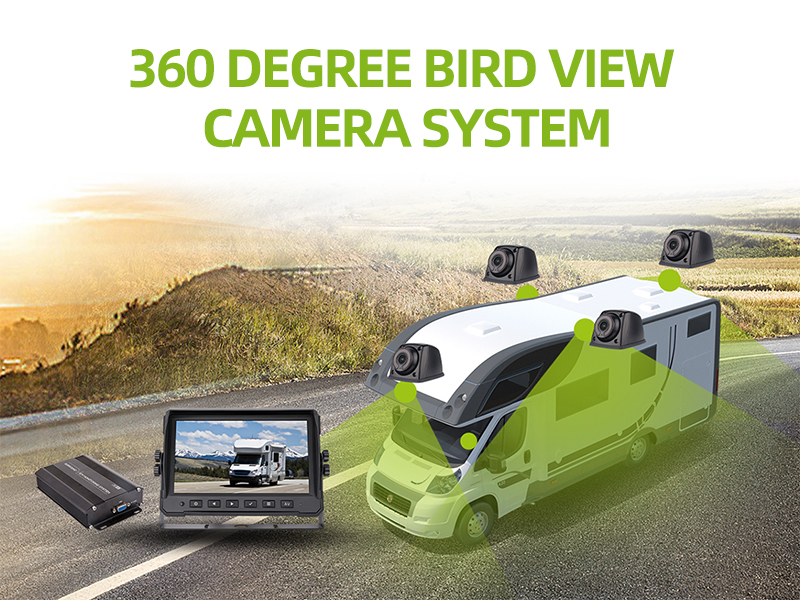
후방 카메라 시스템은 운전자가 가장 좁은 공간도 확인하고 충돌을 방지하도록 돕습니다. 후방 카메라 시스템은 일반적으로 후방 카메라, 대시보드 장착 모니터, 신호 전송 시스템(또는 전선)으로 구성됩니다. 차량 후면에 설치된 디지털 카메라는 유선 또는 무선 신호 전송 시스템을 통해 대시보드 장착 모니터로 신호를 전송합니다. 운전자는 모니터를 통해 차량 후방 상황을 정확히 확인할 수 있습니다. 정확히 사용될 경우 후방 카메라 시스템은 대부분의 불필요한 사고를 예방하고 운전자의 안전을 보호하며 비용을 절감해 줍니다. 후방 거울로는 차량 뒤에서 놀고 있는 아이를 감지할 수 없지만, 후방 카메라 시스템은 이를 쉽게 포착할 수 있습니다.

후방 카메라 시스템은 레저용 차량이나 대형 트럭(특히 컨테이너를 운반하는 트럭)을 운전할 때 생명을 구할 수 있습니다. 후방 카메라 시스템을 설치하고 사용하면 캠핑 하우스나 보트 선착장에 주차하는 것이 아주 쉽습니다. 현재 대부분의 신차에는 후방 카메라 시스템이 기본 패키지의 일부로 장착되어 있습니다. 하지만 이 패키지가 없는 구형 차량이나 신형 차량에도 후방 카메라 시스템을 추가하는 것은 여전히 쉽습니다.

백업 카메라 시스템을 구매할 때는 장착할 차량의 크기를 고려해야 합니다. 트럭이나 레저용 차량용 백업 카메라 시스템은 일상적으로 사용되는 소형차에 장착할 수 있는 시스템과는 완전히 다릅니다. 백업 카메라 시스템에서 고려해야 할 요소 중 하나는 야간 시야 기능입니다. 일반적으로 대부분의 차량에는 20~40피트(약 6~12m)의 야간 시야 거리를 가진 백업 카메라 시스템을 선택하는 것이 충분합니다.

시장에는 유선과 무선 두 가지 유형의 후방 카메라 시스템이 있습니다. 유선 후방 카메라 시스템은 비용 절감 옵션이지만, 무선 후방 카메라 시스템에 비해 설치가 다소 까다롭습니다. 특히 Amazon.com과 같은 온라인 쇼핑몰에서 백업 카메라 시스템을 구매할 때는 설치 비용을 고려해야 합니다. 하지만 직접 설치하는 DIY 방식을 선택한다면 결국 방법을 찾아낼 수 있을 거라 확신합니다. 또한 소매점이나 자동차 정비소에서 백업 카메라 시스템을 구매할 경우 대부분 무료 설치 서비스를 제공하거나, 최소한 구매 가격에 설치 비용이 포함되어 있습니다.

신뢰할 수 있는 백업 카메라 시스템을 한 번 구매하면 수년간 사용할 수 있습니다. 많은 제조사들이 합리적인 가격에 우수한 품질의 브랜드 백업 카메라 시스템을 판매하고 있습니다. 온라인으로 백업 카메라 시스템을 주문하기 전에 다른 고객들이 남긴 리뷰를 확인하는 것이 좋습니다. 일반적으로 우수한 품질의 백업 카메라 시스템은 약 150~200달러 정도이며, 이는 제공되는 안전성을 고려할 때 지불할 만한 작은 비용입니다. 차량에 후방 카메라 시스템을 이미 설치한 사람에게 물어보면, 그 가치가 충분하다고 자랑스럽게 말할 것입니다.

루뷰 주식회사는 고품질 백업 카메라 시스템 및 기타 제품을 제공해 왔습니다. 차량용 카메라 제품 자동차, SUV, 트럭, 밴 및 기타 차량용 솔루션. 루뷰 카메라 제품 딜러가 되고 싶거나 루뷰 차량용 카메라 제품의 현지 딜러를 찾고 싶다면, 이메일로 문의해 주십시오: sales@luview.com 자세한 내용은.

대시보드 카메라 버튼 사용 설명서

2CH HD WiFi 차량용 대시보드 카메라 사용 설명서

This 2 CH HD WiFi Car dashboard camera use the NOVATEK 96663  sensor + 2 CH SONY 322 program which creates the highest quality car dashboard camera and built in WiFi mode controlled by mobile phone, it brings users a different driving experience.

Product Specifications

Operating Voltage DC 9-18V
Operating Current 300mA士10mA
Storage Medium Micro SD card (maximum 32G, TF card)
센서 IMX322   2M CMOS
렌즈 F2.0 Super large aperture 6pcs full glass HD lens
LCD screen 2.0 inchC960X240)HD TFT LCD screen
Audio o Built-in microphone /801W Speaker
Audio   Format MP4 H.264
Audio Format AAC
Photo Format JPEG
Photo   size 12M(4032×3024   )
Video Record FHD 1080P 30FPS

FHD 1080P 30FPS+1080P 30FPS

HD 720P 1280*720   120 /60/30FPS WVGA 840*480   VGA 640*480

작동 온도 -20°C~70°C
Operating Humidity 15~85%RH

Production Functions

Functions Compendium
HD Recording Up to 1920x1080P and 30FPS impacted continuous recording and

no data missing

Photographing

 Function

Take the HD photo by the PHOTO key during the recording.
Synchro Sound

 Recording

Synchro sound recording can be achieved when video recording and also can be

 turned off the sound recording

동영상 재생 Stored video files can be played back through the mobile phone APP or playback

 after downloaded it.

비디오 출력 Output Synchronized the CVBS(NTSC) video and can be played with car monitor or other devices
WiFi Connection Control/monitoring driving video via WiFi, supports playback/download

 Product Accessories


Standard Accessories

Car dash cam 1pcs User Manual 1pcs
Power Cable 1pcs Quality Certificate 1pcs
Warranty Card 1pcs

Power cable and video cable connection. The product with 3 power lines and please connect them as the following:

Lines Definitions Functions
 

Yellow


12V DC

Connect to the normal power car battery

anode(BATT +).


Red


ACC 12V

Connect to the car ACC power;

the car dash cam will work when the ACC is 12V

Black GND GND, connect to car battery cathode
RCA male connector Video output connect  the  CAR  DVD  screen.  Please  handle  it  with

insulating tape if it is disconnected.

Notice: please connect the cables strictly as the above requirements, and use the cables which come with the product. Otherwise, maybe it shows the card is full, video can not be play, or time
is incorrect. We won’t be responsible for anything which cause by the false cable connection.

The dashboard camera will open the WiFi mode and stat recording automatically when powered on, at the same time, the blue light will be flashing.

Issues Problem shooting method
Camera  can’t  be  added  by APP 1, Set to turn on the WIFI
2, Set to open mobile phone permissions.
3, Uninstall the app and re-install it, allow permissions when prompted.
Can not record properly 1, Change the TF card to Class 10 card or format the TF card.
2, Set to change the resolution.
3, Make sure the TF card is installed correctly (when install the card, there will be a sound showed up).
4, Delete the useless files which stored in the TF card to release space.
Video is not clear 1, Set to change the resolution.
2, Make sure the camera lens is clear, if not, please clean the camera lens.
Dashboard camera works normally but buttons can’t work Use a needle to press the reset button in the reset hole or restart the dashboard cam.
Please be careful to use the reset button, it may lead to data loss.
The video can’t be played normally or the sound is not normally when playback the video on the computer If video can’t be played normally, please change another player to play the video. If sound is not normally, it may because of the bad performance of the speaker, please change to a better performance speaker, please use the laptop to playback the video.
Mosaic showed when playback the video 1, Move closer to the dashboard camera to strengthen the WIFI signal.
2, Set to lower the phone video resolution.
3, Use a higher-profile phone.

Warm Tips!

The system supports 32G micro SD memory card maximum .In order to ensure the quality of the recording ,please use genuine SD card ; non- genuine SD card may cause the date loss or damage. The company shall not be responsible for any loss caused by using non- genuine SD card due to the user .Please use CLASS 10 level of high -speed memory card .It is forbidden to pull or insert SD card   when the system   is turn on ,so that damaged the SD card .

The driving recorder only available for +12 power supply system ,can’t use +24v power supply system .Such as the common bus ,trucks and other commercial vehicles.Please confirm the voltage before installation ! The company shall  not responsible for any damage caused by over pressure use .Such as damage of driving recorder ,smoke fire and other risks.

Product instructions

 Appearance introduction, this product is a universal car dashboard camera.

Universal car dashboard camera appearance instructions
Product status indicated by red or blue light. Red light when power on / stop recording.
Blue light flashing when recording, Red light flashing when without SD Card or something wrong with SD card. Red light when stop recording.

대시보드 카메라 버튼 사용 설명서1.PowerSwitch:Short press to start /stop  Long press to power off. Short press to power on when in the Power Off mode. It is the Enter key when it in the Menu mode, it can be start playing or stop playing in the Playback mode.
2.Upwards:Short press to take pictures when recording, it is the Upwards button or Rightwards button in the Menu  Long press to switch video output display and screen display.
3.Downwards:Short press to power on/off the MIC when recording, it is the Downwards button or Leftwards button in the Menu  Long press to enter Mode(Long press at the first time in the Recording mode to switch to the Photographing mode, long press at the second time to enter the Playback mode. Long Press when the Playback mode stops Playing to back to the Recording mode.)
4.Menu:Short press to awaken/shut the back light of the screen when  Short press to set the menu and long press to turn on/off the WiFi when no recording.
5.Reset:Short press to reset/restart the device.
6.SOSLock:Short press to lock the current recording  Long press to switch the front camera and backup camera for recording. Sequence is current recording camera to front camera to backup camera and circulating.

dashboard camera storage folder

The file will be divided in two folders ,Remote Camera (The driving recorder folder) and Local Media(The phone download local folder).Click “Remote Camera” to enter the driving recorder files .

dashboard camera captured videos

choose video files “Movie” or photo files “Photo” to browse;then click the select required playback or downloaded files will pop-up the need action option.

dashboard camera local media options

Click  “local media”  in folder main menu to enter phone folder ,will display the video and camera that have been downloaded on your phone memory card.
Stop/ Open Video button : Click   to start / stop
Take a picture : Click this  icon to take a HD pictures in photo mode, click to snap pictures in video mode

Installation instructions

Note: car dashboard camera tail from the car proof position must be greater than 7 mm, otherwise can’t be normal cannibalized in the future.

Storage reference data of the SD card

The film resolution 4G 8G 16G 32G
1920×1080(30fps) 34min 68min 136min 272min
1280×720(30fps) 50min 80min 160min 320min
Photograph 2720photos 5440min 10880photos 21760photos

Product Settings

When stop recording, short press Menu button to enter the Video setting menu, then short press to enter the System setting menu. It will retreat from the menu and back to recording when press it at the third time.

dashboard camera setting

Video menu options include: video resolution– set video recording resolution; loop recording — set the video package file time; exposure compensation– set the exposure value; motion detection– turn on / off motion detection function; video audio setting — video recording audio switch; date label– set video watermark time.

The settings menu contains:

Turn on/off WIFI;

Date/Time– Set the date or time(press power button to enter the date settings page, press up/down keys to select the years, press power button to save the year info and it will automatically enter the month setting page, do the same as above to set the month or day info and date display format);

Auto Power Off– set the time of auto power off; Button Sound– set if you need to make a sound when press buttons;

Language Settings– set languages: English, French, Spanish, Portuguese, German, Italian,Chinese simplified, traditional, Russian, Japanese.

The frequency of the light source– 50Hz or 60Hz optional, to synchronize the frequency of external light source to reduce flicker;

Format– format memory card.

Default Settings– restore the default settings, after pressing confirm, all the parameters WiFi be returned to the factory default settings.

VER(version)- view the native software version. 

Recording Function

Video recording is the basic function of the product, this product using top Novatek 96663 platform provides HD quality video recording which is far more than other platforms.

Video Recording Turn on

Automatically turn on the video function

Insert TF card, the function will automatically turn on when the product is powered and turned on.

Manual turn on/off video recording

1, Short press the power button to turn on/off the function

2, Press the   button on the phone to turn on/off the function

Video Recording Indicator

The blue light start flashing when the function is turned on

Loop Recording

When the TF Card is full, the latest video files will overwrite the old video files. Take system default 1920 x 1080p 30fps for example, the video file is 80MB per minute, if TF card is 8GB, it will be full after about one hour, and new video files will overwrite old video files.

WiFi Connection

After confirm the wifi of driving recorder and the WIFI menu of the phone are open ,finding the WIFI:NVT_CARDV, enter the password:12345678 to connect

dashboard camera Wifi settings

APP Connection

After WiFi connection is successful ,open the installed APP(NovaCam) connected to driving recorder rear-time control interface

dashboard camera APP connection setting

긴급 상황 Recording

The product’s can monitor the change of acceleration at any time with G-sensor sensor built-in, when the acceleration change non-normally (collision, emergency brake, etc.), the emergency recording function will be triggered, the emergency video file will be saved in the TF Card root directory \Novatek\LOCK folder, files in this folder will not be covered. But TF card available space will be reduced with too many useless event files inside, we recommend timely cleaning: to remove unwanted files which stored in ‘LOCK’ folder.

Videos Saved in Segments

Normal video files stored in the TF card root directory \ Novatek \ MOVIE folder, in order to prevent the loss caused by the accidentally damage of the video files , the product using the short video storage; each video files can seamless connect to the neighboring files. The lack of the video files won’t happen.

APP Connection

After WIF connection is successful ,open the installed APP(NovaCam) connected to driving recorder rear-time control interface

카메라 Capture Function

The product has high-definition photos capture function, when recording, short press the button to take picture; The picture will be named “year – month – day – hours – minutes – seconds -000.JPG”, the pictures will be stored in the root directory of the TF Card \Novatek\PHOTO folder.

Video Playback

When non-recording, long press the button to go into the ‘camera’ mode, long press again the  button to go into the video playback interface, select one of the video files and press the power button, the video will be played, press button to stop paying the video and long press the button to exit video playback interface.

Audio Recording Function

The product has the function of synchronous recording of the video; if no need synchronous audio recording, short press the key or set the microphone to close in the setting menu .

WIFI Connection

The product has WiFi connection capabilities, smart phones, computers and other terminal equipment can connect the WiFi to view/control the product.

Install Mobile Terminal APP

Please use a mobile phone to scan the two-dimensional code or enter the URL to install APP; Apple IOS users :, in store App, search NovaCam, you can download for free.

dashboard camera app download ocr code for ios cellphone

Android APP: search “NovaCam” to download the app

dashboard camera app download ocr code for Android cellphone

WiFi opening

Press the Menu keyOr enter the menu settings page to open / close WiFi,after open the wifi ,driving recorder will serve as a WIFI hot spots ,WiFi SSID is the   NVT_CARDV plus a group of random code,password is :12345678. The display shows as following after the wifi openning :

Wifi connection status